
Get started with VPS2

This guide shows how to add VPS2 to your project, configure its localization options, and manage its lifecycle. For an explanation of universal and VPS map localization, assets, and tracking states, see Visual Positioning System 2.

Prerequisites​

This guide assumes that you have already completed:

If you are upgrading an existing ARDK 3.x application, see Migrate from VPS to VPS2.

Add and configure VPS2​

The Niantic Spatial Unity SDK (NSDK) uses AR Foundation as the interface for exposing its features. Adding VPS2 is therefore similar to adding other AR Foundation components.

ARVps2Manager​

ARVps2Manager is the entry point to VPS2: configuration, localization, geolocation, anchors, and asset tracking. It owns the VPS2 feature's lifecycle. Tracked assets and anchors are served as trackables by the ARVps2AssetManager and ARVps2AnchorManager components it requires next to it; Unity adds both automatically when you add ARVps2Manager to a GameObject.

The manager can also convert between local AR poses and global geopositions (and vice versa).
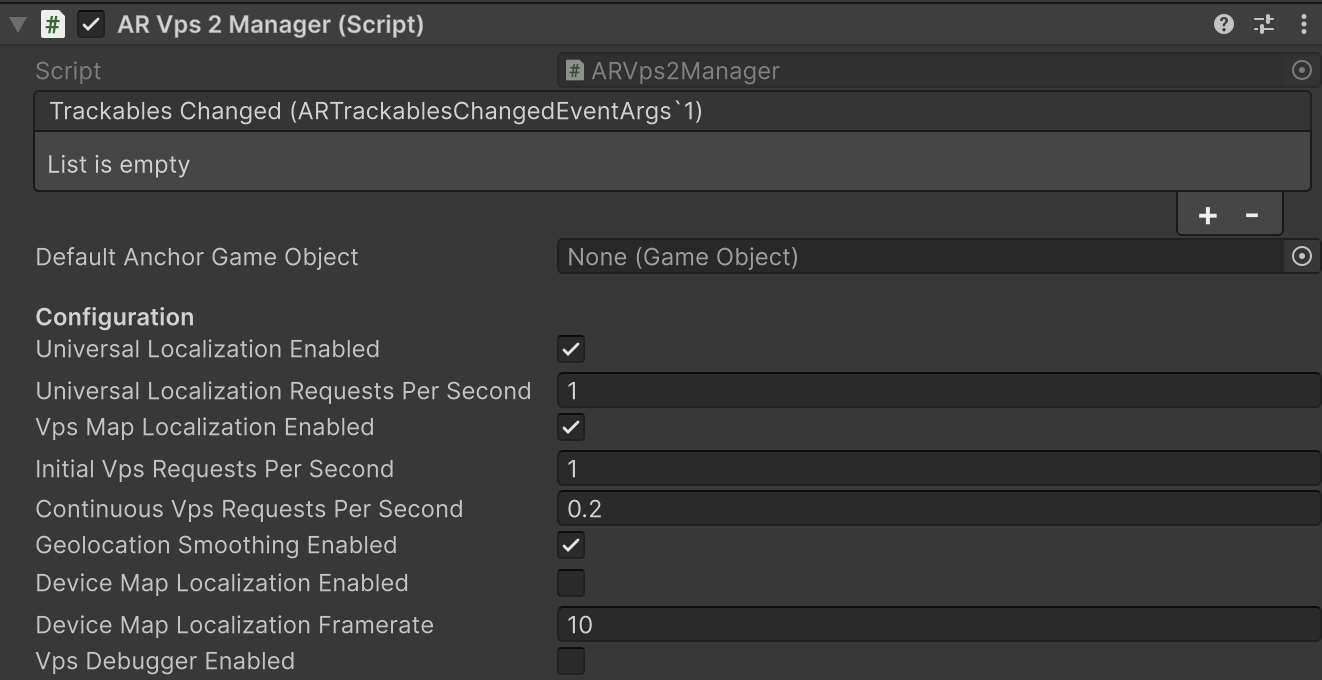
AR VPS2 Manager Component

Configuration Fields​

FieldDefaultWhat it controls
Universal Localization EnabledDisabledWhen active, the VPS2 session sends camera imagery and the device's GPS position to the cloud for geopositioning, without needing a VPS map. This can improve geoposition accuracy beyond local sensor fusion but requires a network connection. If disabled, the device's geoposition away from VPS maps comes from local sensor fusion alone, which always runs. Either way, the VPS2 tracking state reaches at most coarse until it localizes to a VPS map.
Universal Localization Requests per Second1Frequency of network requests sent for universal localization.
VPS Map Localization EnabledEnabledWhen active, the VPS2 session sends AR sensor data and camera imagery to the server to localize against VPS maps. This only allows VPS map localization: no requests are sent until you call localize (Unity: TryLocalize) for a Site or a nearby coordinate.
Initial Requests per Second1.0Server request frequency prior to the first successful VPS map localization. For example, 1.0 is one request per second.
Continuous Requests per Second0.2Server request frequency after the initial VPS map localization. For example, 0.2 is one request every five seconds.
Temporal Fusion EnabledEnabledFuses successive VPS map localizations against the same map into one estimate, instead of using only the newest. Localizations that agree raise the asset's tracking confidence and steady its pose, at the cost of reacting more slowly to a genuine pose change. Unrelated to local sensor fusion of GPS and compass.
Geolocation Smoothing EnabledEnabledEnables interpolation between localization updates. This minimizes “snapping” or visual jumps during abrupt GPS or compass recalibrations, for a more stable AR experience.
Blur Detection EnabledDisabledEnables an advisory image blur check on the frames VPS2 sends for VPS map localization. A frame whose sharpness score falls below the threshold produces a FrameFlagged localization request record with error ImageTooBlurry, but is still sent for localization, never rejected. Use the signal to coach the user, for example "hold the device steady". See Prompt users through blurry frames.
Min Sharpness Score0Sharpness threshold below which a frame is flagged as too blurry. The default of 0 flags nothing. Higher scores mean sharper images. There is no universal "sharp" value; 1000 is a good starting point and is the value the VPS2 samples use.

Universal and VPS map localization are configured independently. VPS map localization is enabled by default; universal localization is disabled by default, so turn it on explicitly if you want cloud geopositioning. Local sensor fusion is not configurable and runs in both cases.

ARVps2Manager enables VPS Map Localization but not Universal Localization, so a scene that uses the component runs VPS map localization only, on top of local sensor fusion. Tick Universal Localization Enabled on the inspector component to run both together.

Start and stop VPS2​

VPS2 starts and stops according to the Unity component lifecycle. When started, VPS2 begins local sensor fusion, which provides coarse positioning estimates typically within a few seconds after the AR session begins running, and starts universal localization if it is enabled. VPS map localization does not start until you call TryLocalize:

A Site must have a processed VPS map tagged for production to be eligible for map-relative localization. Localize requests are additive, and the submitted Sites stay in the localization set until the manager stops.

To check whether the Site has localized, call TryGetAssetTrackingData with the Site's asset ID, which you can get from the Sites API or from the localized asset in the latest localization; it returns data while that asset is tracked. Without an asset ID, it reports the asset the device most recently localized to, which may belong to a different Site when you localize to several. Do not use the session's Vps2TrackingState for that check. For the difference between those two states, see Tracking states.

TryLocalize(...) requires a running manager: a request made while ARVps2Manager is disabled is rejected, returns false, and logs a warning. Enable the manager first, then request localization.

When stopped, all localization and anchor state is reset.

Set the configuration before enabling ARVps2Manager. While it runs, you can change request rates, blur detection, and area targeting margins through the ARVps2Manager properties; they apply live at the end of the frame. Editing fields in the Inspector during Play mode does not apply them. Avoid changing other fields on a running manager: depending on the field, the change briefly interrupts geopositioning (Universal Localization Enabled), takes effect only the next time the component is enabled (for example Geolocation Smoothing Enabled), or resets anchor tracking so assets must localize again. To change them, disable the component, change the fields, then enable it again.

Next Steps​

GoalGuide
Complete an end-to-end Site localizationFirst localization with NSDK
Retrieve global position, heading, and accuracyGeolocate with VPS2
Localize to a Site and attach AR contentPlace virtual content with VPS2
Retrieve Sites and assets at runtimeGetting Started with Sites
Guide users to a successful localizationGuide users during localization
Explore complete implementationsNSDK sample projects